Skip to content

flutter

4 posts with the tag “flutter”

Flutter, Firebase, and Google Sign In 7.1.0

In typical Google fashion, the google_sign_in package was updated recently and if you missed the migration guide, your apps are broken. In this post, I’ll walk you through using version 7.1.0 of the google_sign_in package with Firebase and Flutter.

To get started, add the newest google_sign_in version to your pubspec.yaml:

google_sign_in: ^7.1.0

If you don’t have one already, create a new Firebase project in the Firebase console and then navigate to the authentication tab. Under “Sign-in method”, select “Add new provider” and choose “Google”.

You can create a web client ID a few ways.

Once you have the client ID, add it to your environment variables file. I typically create a config.json file in my assets folder and load my variables from that using String.fromEnvironment:

config.json
{
"SERVER_CLIENT_ID": "YOUR_CLIENT_ID"
}
await GoogleSignIn.instance.initialize(
serverClientId: const String.fromEnvironment("SERVER_CLIENT_ID"));

You will need an iOS client ID to sign in with Google on iOS. To get one of these:

  1. Log into your Google Cloud Console
  2. Navigate to APIs & Services
  3. Select “Create credentials”
  4. Select OAuth Client ID
  5. Choose iOS from the application type dropdown
  6. Fill in each of the fields and click save

Once you have the client ID, copy it and add it to your Info.plist file.

https://firebase.google.com/docs/auth/flutter/federated-auth

Developer console is not set up correctly.

Section titled “Developer console is not set up correctly.”

GoogleSignInException(code GoogleSignInExceptionCode.unknownError, [28444] Developer console is not set up correctly., null)

As pointed out in the docs, “[clientId] is the identifier for your client application, as provided by the Google Sign In server configuration”. In other words, you need to set the serverClientId to a web client ID on Android, not an android client ID.

Failed to sign in with Google: GoogleSignInException(code GoogleSignInExceptionCode.clientConfigurationError, serverClientId must be provided on Android, null)

Ensure that you are initializing the GoogleSignIn instance before calling any other methods.

await GoogleSignIn.instance
.initialize(serverClientId: const String.fromEnvironment("ANDROID_CLIENT_ID"));

Execution failed for task ‘:app:checkDebugDuplicateClasses’.

Section titled “Execution failed for task ‘:app:checkDebugDuplicateClasses’.”

Execution failed for task ‘:app:checkDebugDuplicateClasses’. Querying the mapped value of provider(java.util.Set) before task ‘:app:processDebugGoogleServices’ has completed is not supported

Update the Kotlin version in android/gradle/wrapper/gradle-wrapper.properties and android/settings.gradle to the latest Kotlin version (ex. 8.10):

distributionBase=GRADLE_USER_HOME
distributionPath=wrapper/dists
distributionUrl=https\://services.gradle.org/distributions/gradle-8.10-bin.zip
zipStoreBase=GRADLE_USER_HOME
zipStorePath=wrapper/dists
settings.gradle
plugins {
id "dev.flutter.flutter-plugin-loader" version "1.0.0" // apply true
id "com.android.application" version "8.3.0" apply false
// START: FlutterFire Configuration
id "com.google.gms.google-services" version "4.3.14" apply false
id "com.google.firebase.crashlytics" version "2.8.1" apply false
// END: FlutterFire Configuration
id "org.jetbrains.kotlin.android" version "1.8.10" apply false
}

Add App Icons

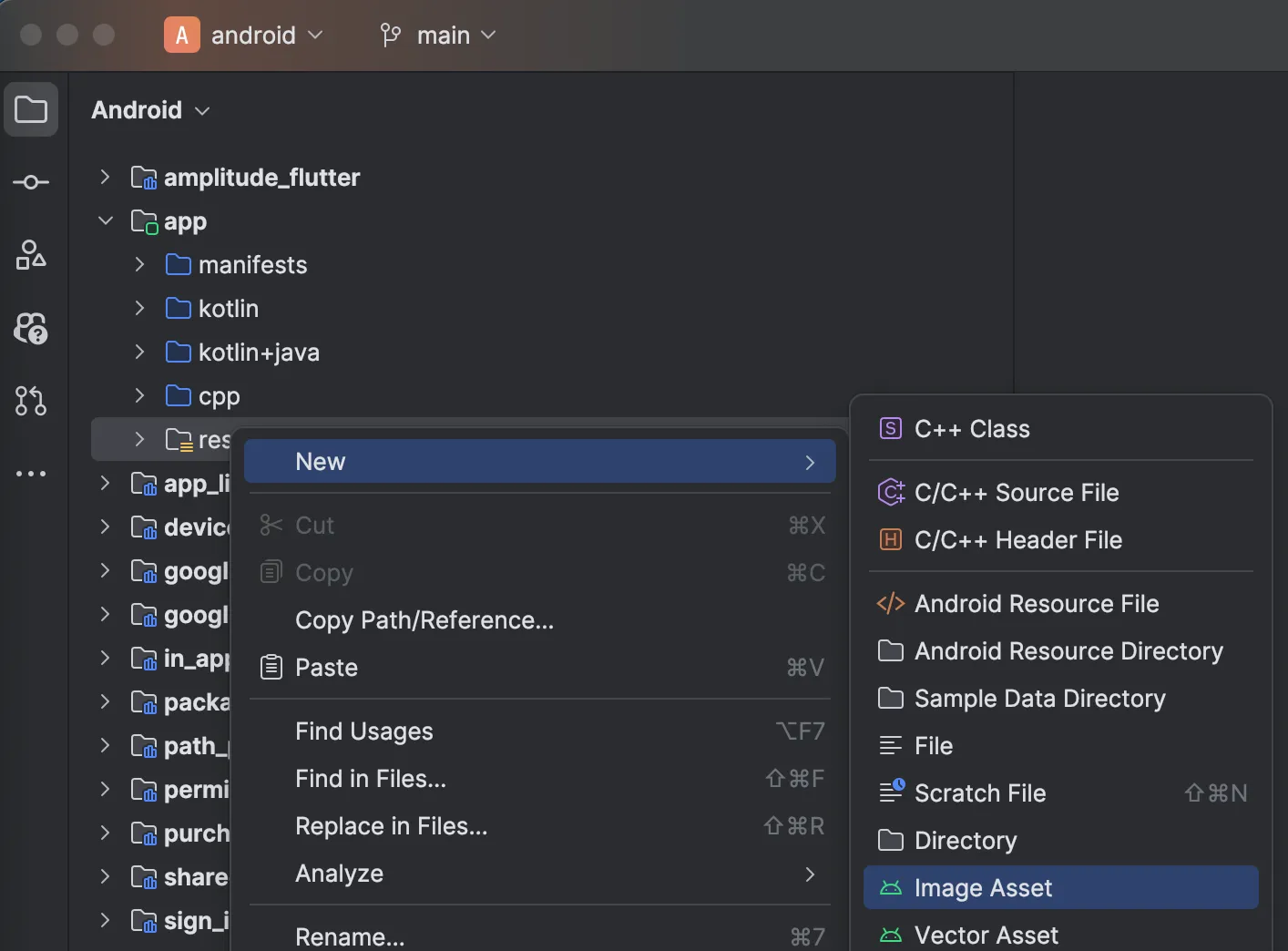
The easiest way to add app icons for Android is using Android Studio.

  1. Open the android folder of your Flutter project in Android Studio.
  2. In the left sidebar, open the app folder.
  3. Right-click on the res folder and select New > Image Asset.

Android Studio Image Asset

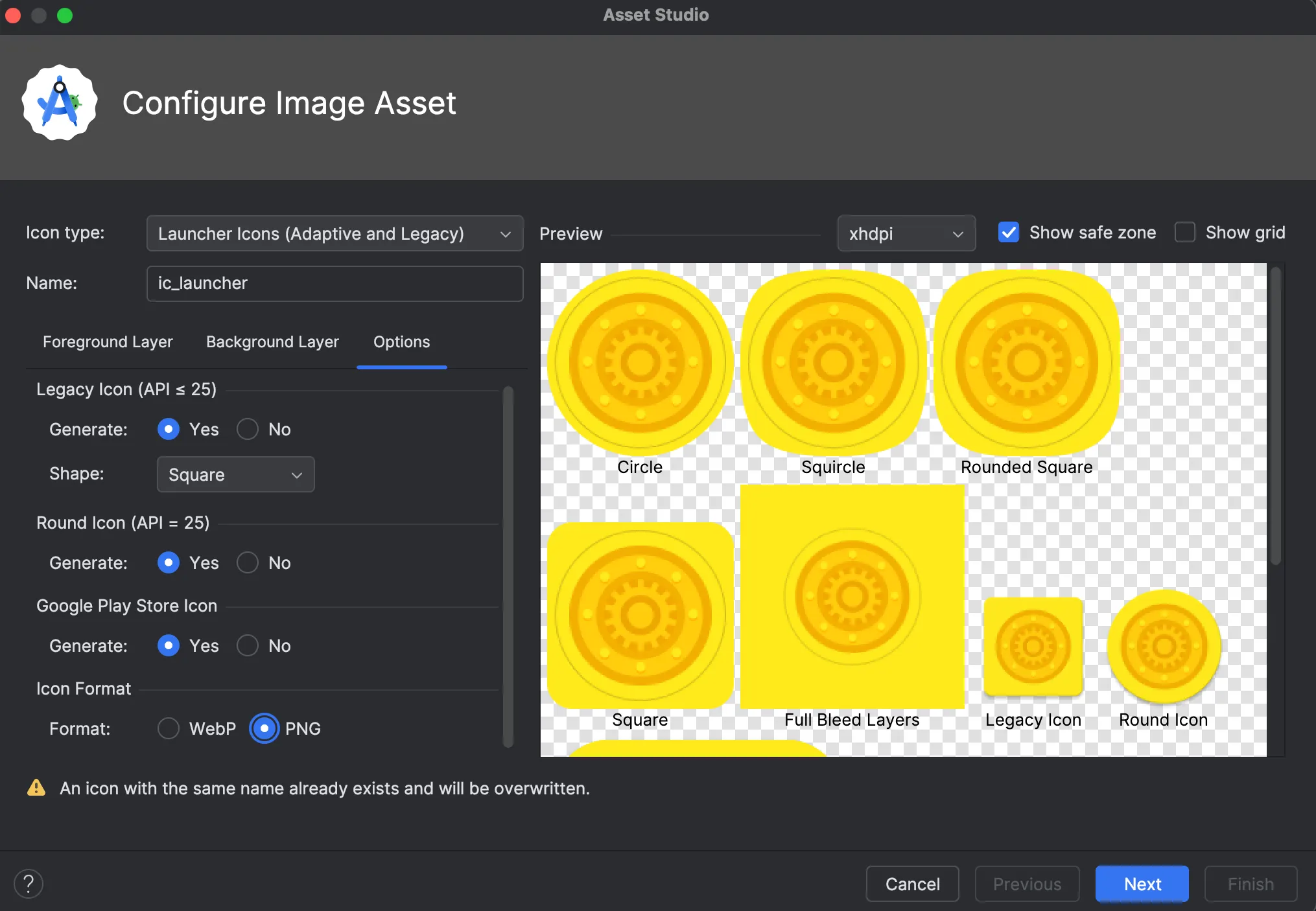
  1. On the “Configure Image Asset” dialog, select “Launcher Icons (Adaptive and Legacy)”.
  2. Choose your image file and adjust the settings as needed.
  3. On the “Options” tab, under the “Icon Format” section, choose the PNG option. This will ensure that the correct icon is used in Firebase App Distribution.

Use PNG format 7. Click “Next” and then “Finish” to generate the icons.
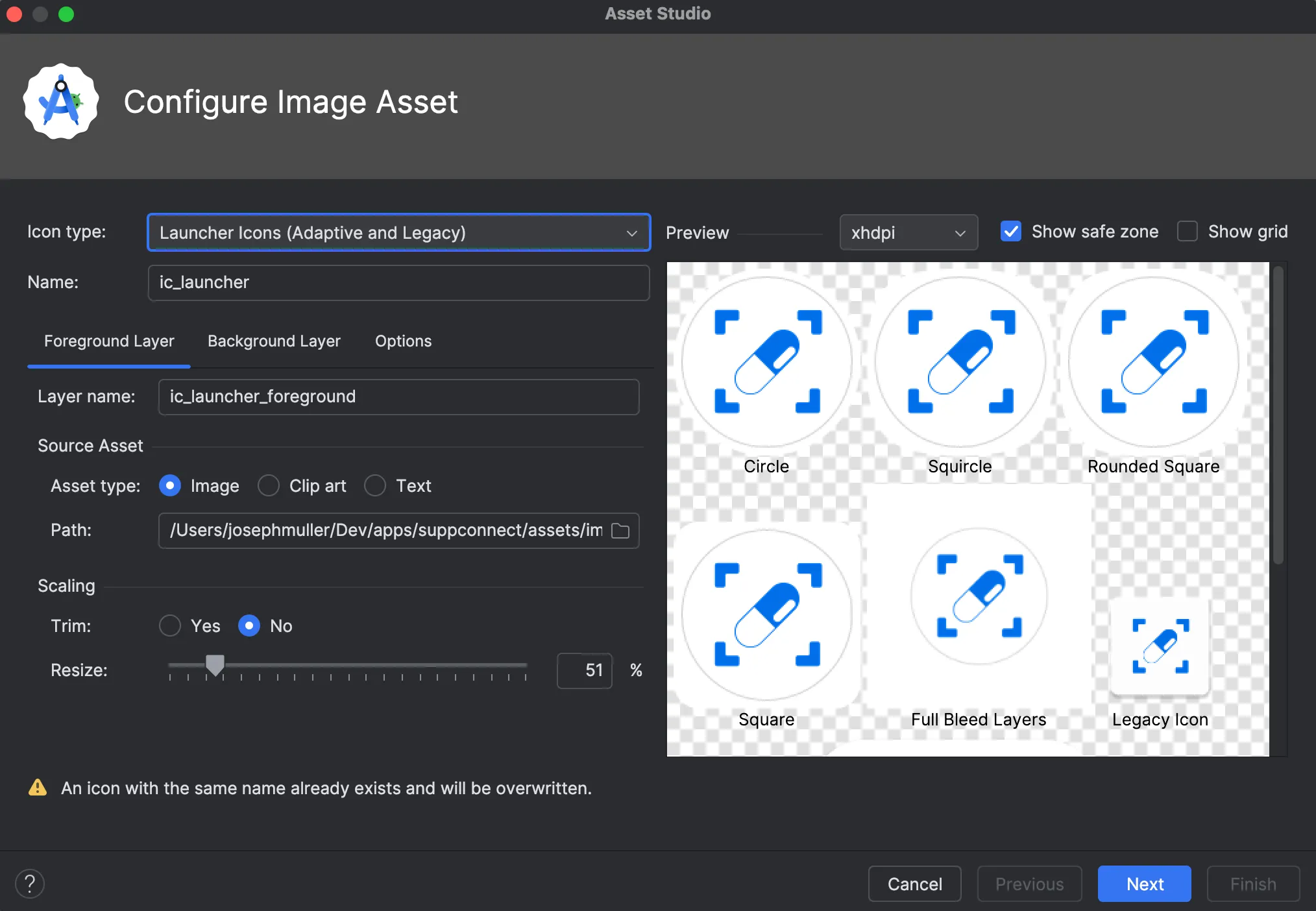
Configure Image Asset

See the official docs for a less useful walkthrough.

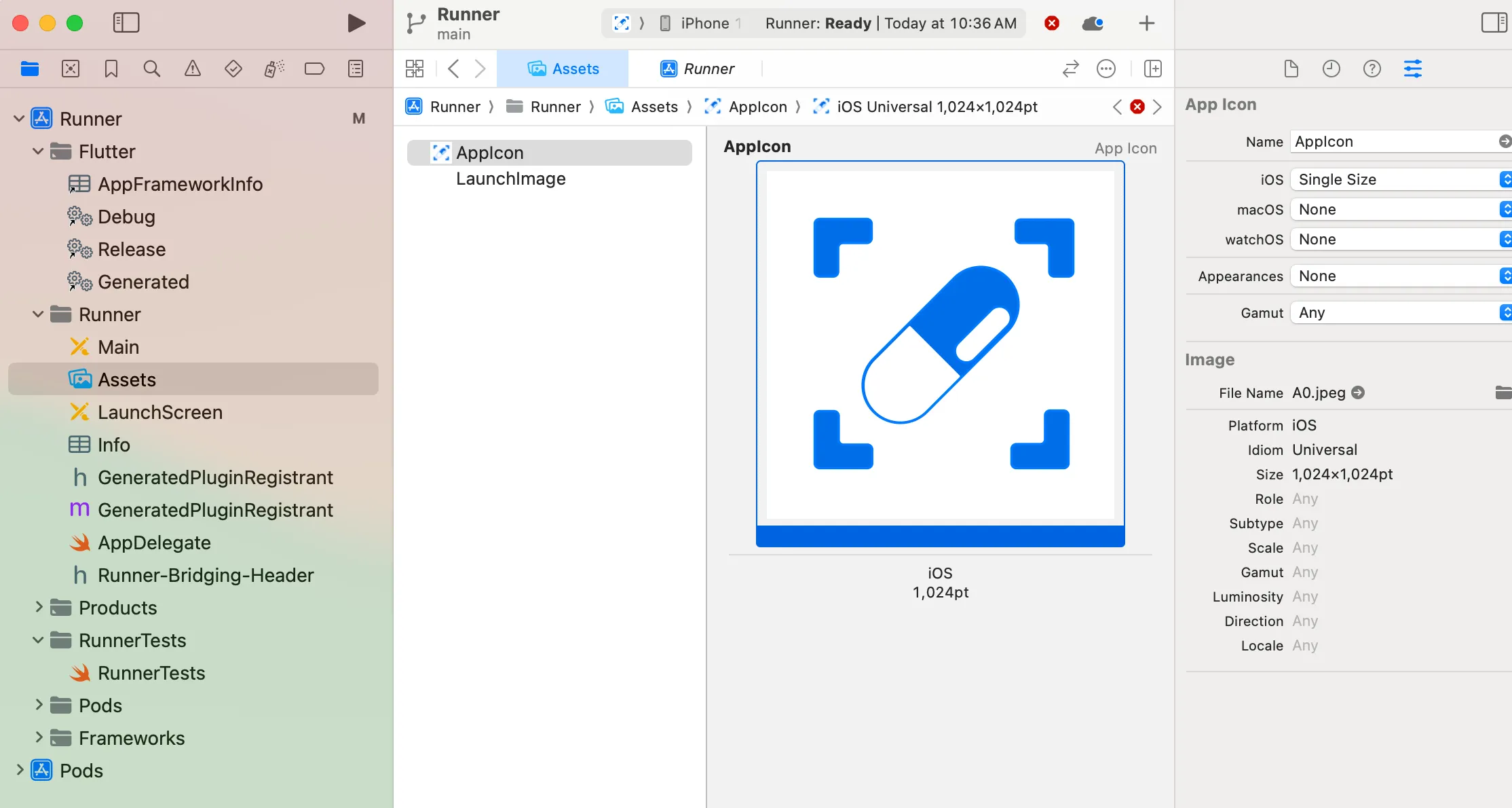
  1. Open the ios folder of your Flutter project in Xcode
  2. Under Runner -> Runner, open the “Assets” activity
  3. Select the “AppIcon” item from the list
  4. On the right panel, in the “Image” section, select your file where it says “File Name”
  5. For best results, choose an image with a background (ex. .jpg)

Xcode AppIcon

Xcode will generate all of your app icons from a single asset.

Do NOT change the name of the asset from “AppIcon”. Do NOT try to delete the AppIcon asset and add a new one. Just change the file.

Flutter App Release Playbook

Releasing a Flutter app isn’t necessarily simple. There are a hundred and one things to remember related to signing your app, creating app store assets, distributing the app, and more.

First, create your upload keystore using the following command:

keytool -genkey -v -keystore ./keys/upload-keystore.jks -keyalg RSA -keysize 2048 -validity 10000 -alias upload

I usually store the signing key in the same project where it is used and add the keys directory to my .gitignore 💙.

Next, follow the steps listed here to configure app/build.gradle 💙.

Create a new file at [project]/android/key.properties and fill it in. For example:

storePassword=password
keyPassword=password
keyAlias=alias
storeFile=../keys/my-keystore.jks

For the first release, use the flutter CLI. The flutter build command defaults to using the release build configuration. To create a release build, run the following command:

Terminal window
flutter build appbundle

For subsequent releases, run the Fastlanes:

Terminal window
cd android
fastlane internal

If you’d like to send the app to testers before it is available on the app stores, you can do so using Firebase App Distribution.

You can distribute APKs without creating an app in the Google Play console. To start, build the .apk:

Terminal window
flutter build apk

Then, drag the APK from build/app/outputs/flutter-apk/app-release.apk into the app distribution page in the Firebase console.

You can also distribute app bundles to users, but the setup is more involved. Namely, you need to link your Firebase project to your Google Developer Console.

First, build the app bundle:

Terminal window
flutter build appbundle

Then, upload the build/app/outputs/bundle/release/app-release.aab file to the internal testing track in the Google Play console (this is required to distribute app bundles via Firebase).

Create a new service account for Fastlane if you don’t have one already.

In the android/fastlane/Appfile file, update the json_key_file and package_name entries to match your project’s values.

SpecValue
Icon Size512 x 512 px
Feature Graphic Size1024 x 500 px
Phone Screenshot Size9:16 Aspect Ratio
7-inch Tablet Screenshot Size9:16 Aspect Ratio
10-inch Tablet Screenshot Size9:16 Aspect Ratio

Screenshots must be PNG or JPEG, up to 8 MB each, 16:9 or 9:16 aspect ratio, with each side between 320 px and 3,840 px

You can use the Device art generator provided by Google to create nice looking mockups.

Your app icon must be a PNG or JPEG, up to 1 MB, 512 px by 512 px, and meet our design specifications and metadata policy

I typically use icon.kitchen to create my app icons. Once I’ve downloaded the assets, I then follow the instructions in this Stack Overflow answer to add the icons to my app using Android Studio.

For the first release:

Terminal window
flutter build ipa

For subsequent releases, run the Fastlanes:

Terminal window
cd ios
fastlane beta

In the ios/fastlane/Appfile file, update the app_identifier, apple_id, itc_team_id, and team_id entries to match your project’s values.

Next, create an app-specific password and add it to the .env.default file in the ios/fastlane directory (source):

FASTLANE_USER=<Apple USER ID>
FASTLANE_APPLE_APPLICATION_SPECIFIC_PASSWORD=<App-Specific Password>
SpecValue
Icon Size1024 x 1024 px
Feature Graphic Size1024 x 500 px
5.5-inch Phone Screenshot Size1242 x 2208 px
6.5-inch Phone Screenshot Size1284 x 2778 px
12.9-inch iPad Screenshot Size2048 x 2732 px

Devices for screenshots:

  • 6.5 inch - iPhone 14 Pro Max
  • 5.5 inch - iPhone 8 Plus
  • iPad Pro (3rd gen) - iPad Pro (12.9 inch)
  • iPad Pro(2nd gen) - iPad Pro (12.9 inch)

App store icons should be 1024x1024 px and according to the Apple docs:

You can let the system automatically scale down your 1024x1024 px app icon to produce all other sizes

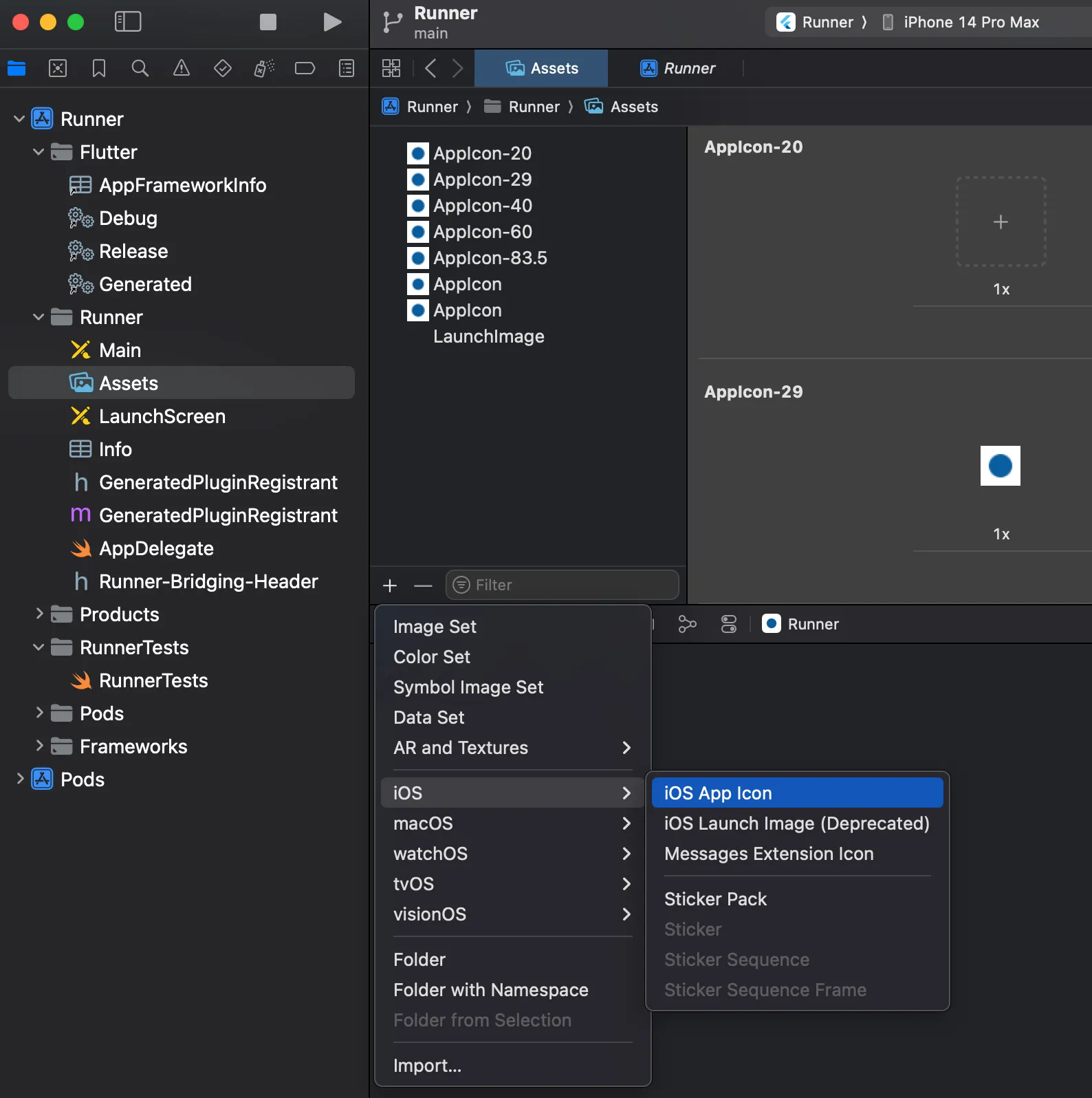
To do this, navigate to the Assets section under Runner/Runner in XCode and press the ”+” icon. Select IOS and then IOS App Icon. This will add an “AppIcon” asset to the project. You can drag a file from your finder onto one of the slots to update the launcher icon.

App Store Icon

I use this Figma file for creating 2D mockups.

  1. Double-click the center of a device and then select the Image button in the “Fill” section on the sidebar.
  2. Choose your image.
  3. Select the device frame.
  4. Scroll all the way down in the sidebar to the “Export” section and export your image.

Google Play Badges

Get it on Google Play

Apple App Store Badges

Download on the App Store

Enhanced Enums in Flutter

Enums were good. Now they’re great.

Flutter 3.0 was announced at Google IO yesterday and as can be expected from a major version jump, there were a lot of new features to dig through. A few of the big ones:

  • Stable support for macOS and Linux apps
  • Improved Firebase integration
  • Material 3 support
  • Foldable phone support
  • iOS release improvements
  • Performance improvements for the web
  • Theme extensions

You can read more about the full release in the announcement here and if you’re someone that wants to see everything that was added, check out the release notes.

The feature that excited me the most didn’t quite make it into the announcement articles, though. Flutter 3.0* also shipped with full support for enhanced enums, meaning that your enums can now behave like mini-classes with members and methods.

Before now, enums were extremely simple — basically just lists of values. If you wanted to make them more useful, you’d need to extend them using the extension syntax. Not too difficult but not too convenient, either.

With enhanced enums, everything can be packed into the enum itself — and that’s awesome.

* Technically speaking, enhanced enums are a Dart 2.17.0 feature. That’s why they were in the Dart announcement and not the Flutter announcement…but either way…

My app, FitJo, has an enum called “Metric” that contains all the possible body-related metrics a user can track in the app. Simple, right? Not quite. Different metrics track different types of units.

  • The “weight” metric tracks lbs/kgs
  • The “bodyFatPercentage” metric tracks a percent value
  • The “chest” metric tracks in/cm

To address this, I created an enum extension with a giant, ugly switch statement that let me know what type each metric was.

After migrating to the enhanced enums structure, the above monstrosity looks like this:

From 64 lines to 26!

This Stack Overflow answer provides some more details on everything that’s possible with enhanced enums so check it out if you’re interested.

In addition to reducing the overall lines of code cluttering your project, enhanced enums seem like the ideal solution for a number of different problems.

Say you have a backend with a fixed list of available endpoints. You could set up an enum for each endpoint that includes fields for the URL pathway and the API version.

If your app lets users set up social profiles, you could create an enhanced enum for all potential social platforms. Each enum would have the name of the platform (Twitter), the URL prefix that goes before the username (https://twitter.com/),,) the icon that should be displayed (Icons.twitter), and the tooltip text that will appear when a user hovers over the icon (‘Twitter’).

For subscription apps, you may want an enum that contains all the features a subscription will unlock. Each enhanced enum would have the name of the feature, a short description, and an image asset path. When a non-paying member stumbles across your offerings page, you can cycle through the Feature.values enum list and show them what they’re missing.

Happy coding!