Skip to content

Blog

Talkdown Devlog

  • Name: Talkdown
  • Description: Markdown based config for chat agents.
  • Link:

title: Dev Log 1 description: Markdown based config for chat agents. lastUpdated: 2025-10-15

Section titled “title: Dev Log 1 description: Markdown based config for chat agents. lastUpdated: 2025-10-15”

This project grows larger every minute I spend thinking about it.

The end goal is to create a “framework” of sorts that allows the developer to completely define how their conversational AI agent behaves using a markdown file. The framework will let the developer create shared prompt sections, sub-agents, transitions, and functions and then outline how the agent is allowed to transition between sub-agents in a type-safe way. By type-safe, I mean that the framework will provide it’s own language server that validates the overall structure of the .agent file. For example, if you define three subagents (Intro, Schedule, and Outro), the language server will expect every transition to reference one of those three and nothing else (attempting to transition to a fourth “Cancel” agent will cause the language server to throw an error).

Once you’ve created a valid .agent file, you should then be able to compile it to a production ready prompt using the Talkdown compiler. This prompt will fully encapsulate the transition logic and can be thought of as a state machine. In addition to the agent, the Talkdown compiler will also generate two things:

  1. A TypeScript interface with all of the allowed modes, variables, and conditions that the .agent file references. When you create the agent using the compiler function, all of the relevant arguments can be provided as a config object.
  2. Prompt previews for each sub-agent so you can see more or less what the compiled prompt will look like under specific conditions

The trouble with developing this framework is simply that the iteration loop is clunky. There are 3 necessary parts:

  • A parser package that parses .agent markdown files and converts them to an AgentDefinition object
  • A language server that follows the Language Server Protocol (LSP) to provide diagnostics, completions, references, etc based on a given .agent file. This uses the parser.
  • A VS code extension that uses the language server to provide Talkdown support to VS Code

While it’s possible for me to run the parser directly against a .agent file and print out the results, I really dislike that workflow.

What I don’t dislike is using my VS Code extension directly, the way I intend to use it when this project is production ready. Because the VS Code extension uses the language server which uses the built parser, every change to the parser requires that I rebuild it and restart the VS Code extension. For the first two days, I was simply rerunning tsc whenever I made a change but that got old fast.

Queue --watch:

Terminal window
tsc --watch

Running tsc with the —watch flag automatically rebuilds the parser. Unfortunately, one watched code base is not enough. I also have to run tsc --watch on the language server to rebuild every time I apply changes required by the new parser.

With both codebases being rebuilt on changes, the only thing left for me to do is restart the VS Code extension. I can live with that.

I have never built a language server before so my initial approach to parsing the markdown was short-sighted. I created a bunch of interfaces to capture the content I was interested in like this:

export interface GlobalConfig {
model?: string;
thinkingBudget?: number;
provider?: string;
summaryPrompt?: string;
summaryFrequency?: number;
temperature?: number;
}

And then went about finding the relevant content in the .agent file. I then passed the final AgentDefinition object to the language server…and realized that the parsed object is only useful if I know where every value comes from (specifically, the line and character number). This position data is used by the language server to communicate with the IDE to tell it where to draw the red, squiggly lines.

With that in mind, I took another pass at the parser and introduced two new “Positioned” interfaces:

export interface Range {
start: Position;
end: Position;
}
export interface PositionedString {
text: string;
range: Range;
}
export interface PositionedNumber {
value: number;
range: Range;
}
export interface GlobalConfig {
model?: PositionedString;
thinkingBudget?: PositionedNumber;
provider?: PositionedString;
summaryPrompt?: PositionedString;
summaryFrequency?: PositionedNumber;
temperature?: PositionedNumber;
}

With that information, it became fairly straightforward to point the language server at the erroneous code.

Another naive mistake I made was

Setup Supabase Email Architecture

To get started, choose a scheme and host name. You will use these to create the redirect URL for your app:

[YOUR_SCHEME]://[YOUR_HOSTNAME]

In this example, my redirect URL will be suppconnect://suppconnect.com. Next, we will update our Android and iOS code bases so they can handle links that use this scheme and host name.

Add the following intent filter inside the activity tag in your AndroidManifest.xml file:

<intent-filter android:autoVerify="true">
<action android:name="android.intent.action.VIEW" />
<category android:name="android.intent.category.DEFAULT" />
<category android:name="android.intent.category.BROWSABLE" />
<data android:scheme="suppconnect" />
<data android:host="suppconnect.com" />
</intent-filter>

Add just the scheme to your info.plist file. You may already have the CFBundleURLSchemes key (ex. for Google sign in) so if that’s the case, just add a new line to the array:

<key>CFBundleURLTypes</key>
<array>
<dict>
<key>CFBundleTypeRole</key>
<string>Editor</string>
<key>CFBundleURLSchemes</key>
<array>
<string>suppconnect</string>
</array>
</dict>
<dict />
</array>

In Xcode, select the Runner Target -> Signing & Capabilities and then add the “Associated Domains” capability. Then, add a domain that uses the following format:

applinks:[YOUR_SCHEME]

For example:

applinks:suppconnect

Associated Domains

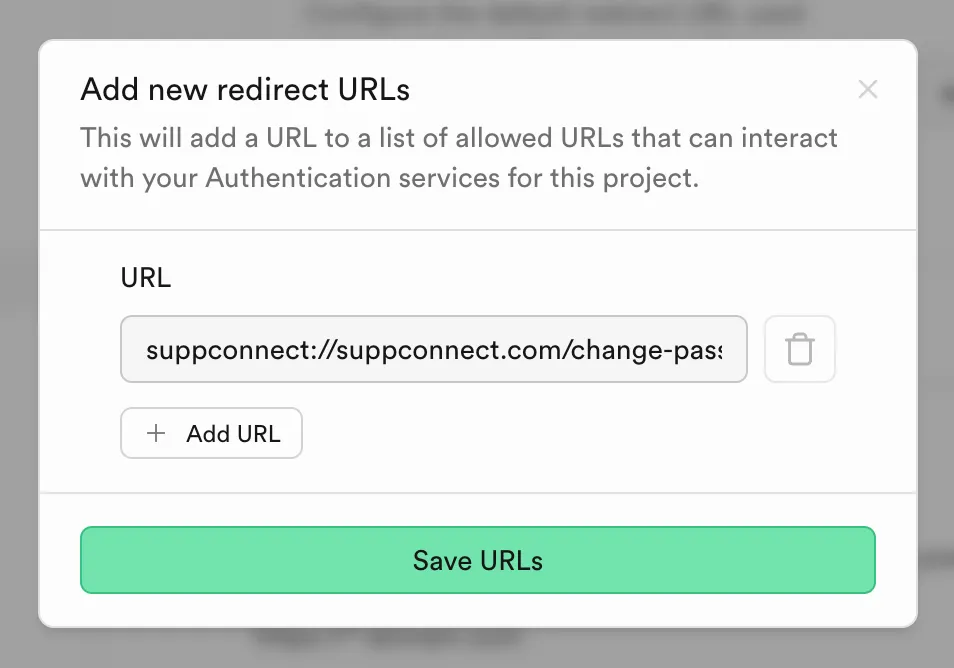
On the Authentication tab, select the “URL Configuration” option.

In the “Redirect URLs” section, add the custom domain from above:

Supabase Redirect URL

In the case of a redirect URL for resetting a password, it will look like this:

suppconnect://suppconnect.com/change-password

In your app, trigger the reset password flow using the Supabase SDK. Set the redirectTo path to the custom domain from above:

await supabase.auth.resetPasswordForEmail(
email,
redirectTo: 'suppconnect://suppconnect.com/change-password',
);

Listen for AuthChangeEvent.passwordRecovery

Section titled “Listen for AuthChangeEvent.passwordRecovery”

Your Flutter app should listen for auth state changes and redirect to

supabase.auth.onAuthStateChange.listen((data) {
final AuthChangeEvent event = data.event;
final Session? session = data.session;
debugPrint('Auth state changed: $event, session: $session');
switch (event) {
case AuthChangeEvent.signedIn:
break;
case AuthChangeEvent.signedOut:
break;
case AuthChangeEvent.passwordRecovery:
router.push(ChangePasswordRoute());
default:
break;
}
});

On the change password page, the user will be authenticated. Here, you can ask them for a new password and update it like this:

final response = await supabase.auth.updateUser(
UserAttributes(password: password),
);

VS Code Snippet Variables

You should use VS Code snippets more than you do and that’s not just an opinion.

The Snippet Syntax section of the VS Code snippet docs is a minefield of knowledge bombs.

"Snippet Test": {
"scope": "dart",
"prefix": "foolsTest",
"body": [
"${TM_FILENAME_BASE/(.*)/${1:/pascalcase}/}",
"${TM_FILENAME_BASE/(.*)/${1:/camelcase}/}",
"${TM_FILENAME_BASE/(.*)/${1:/upcase}/}",
"${TM_FILENAME_BASE/(.*)/${1:/downcase}/}",
"${TM_FILENAME_BASE/(.*)/${1:/capitalize}/}",
],
"description": "Snippet Test"
}

For the file test_test.dart, this outputs:

TestTest
testTest
TEST_TEST
test_test
Test_test

A placeholder in VS Code is a “tabstop” that appears in the rendered snippet. A tabstop is simply a cursor position within a snippet body.

"Snippet Test": {
"scope": "dart",
"prefix": "foolsTest",
"body": [
"$1"
],
"description": "Snippet Test"
}

The output of this snippet is basically nothing. The $1 placeholder is the only thing that gets rendered. In other words, use this snippet if you want to go slow.

You can define a default value for a placeholder using the ${1:default} syntax.

"Snippet Test": {
"scope": "dart",
"prefix": "foolsTest",
"body": [
"${1:Hello}"
],
"description": "Snippet Test"
}

This snippet outputs the word “Hello” but because it’s a placeholder, the entire word is selected so you can easily replace it.

Additional placeholders can be added to the snippet using the same syntax but different numbers.

"Snippet Test": {
"scope": "dart",
"prefix": "foolsTest",
"body": [
"${1:Hello} ${2:World}"
],
"description": "Snippet Test"
}

When rendered, the initial output will be “Hello World” but you’ll be able to tab to and change both words separately.

Note that the placeholder numbers do not have to start at 1, nor do they have to be sequential. This snippet works the same as the one above:

"Snippet Test": {
"scope": "dart",
"prefix": "foolsTest",
"body": [
"${3:Hello} ${40:World}"
],
"description": "Snippet Test"
}

While “placeholders” are numbers, variables in VS Code snippets have specific names and correspond to specific values. For example, this snippet:

"Snippet Test": {
"scope": "dart",
"prefix": "foolsTest",
"body": [
"$CURRENT_YEAR-$CURRENT_MONTH-$CURRENT_DATE $CURRENT_HOUR:$CURRENT_MINUTE:$CURRENT_SECOND"
],
"description": "Snippet Test"
}

Will output something like this:

2025-01-11 13:27:27

Each of the variables (e.g. CURRENT_YEAR, CURRENT_MONTH, etc) was replaced with a real value.

This part is admittedly a bit confusing. You can technically use custom variable names but they will be treated as placeholders that you can tab to and change as described above.

"Snippet Test": {
"scope": "dart",
"prefix": "foolsTest",
"body": [
"${MODEL}"
],
"description": "Snippet Test"
}

This snippet would simply output “MODEL” as a placeholder that you can change.

This GitHub issue from 8 years ago outlines a system that would allow you to actually customize the value of your custom variables but…it’s been 8 years.

Snippets are most useful once you’ve mastered transformations. Transformations are a mechanism built into the snippet framework that let you modify variables before rendering.

The syntax of a variable with a transformation is {Variable Name}/{regular expression}/{format string}/{regular expression options}. An example showing all of these is shown here:

"Snippet Test": {
"scope": "dart",
"prefix": "foolsTest",
"body": [
"${TM_FILENAME_BASE/(test)/${1:/upcase}/i}"
],
"description": "Snippet Test"
}

If the file’s name was testtest.dart, the output would be TESTtest. Why?

  1. The variable name TM_FILENAME_BASE resolves to testtest.
  2. The regular expression (test), combined with the case-insensitive i option at the end, matches on the first “test”.
  3. ${1:/upcase} turns the first “capture group” into all uppercase characters.

You could capitalize the entire file name using a snippet like this:

"Snippet Test": {
"scope": "dart",
"prefix": "foolsTest",
"body": [
"${TM_FILENAME_BASE/(.*)/${1:/upcase}/}"
],
"description": "Snippet Test"
}

Snippets are clearly more dangerous in the hands of someone that knows their way around regular expressions but you should be able to create some cool snippets with even a cursory regex understanding.

There are several built-in formatting options that you can use in the third section of a transformation statement:

  • /upcase: Converts the capture group to all uppercase
  • /downcase: Converts the capture group to all lowercase
  • /capitalize: Capitalizes the first character of the capture group
  • /camelcase: Converts the capture group camel case (camelCase)
  • /pascalcase: Converts the capture group pascale case (PascalCase)
"Snippet Test": {
"scope": "dart",
"prefix": "foolsTest",
"body": [
"${TM_FILENAME_BASE/(.*)/${1:/pascalcase}/}"
],
"description": "Snippet Test"
}

For a file named test_test.dart, this snippet would output “TestTest”.

If you simply want to replace a part of your variable with something else, you can replace the ${1:/format} section of the transformation with the replacement value.

"Snippet Test": {
"scope": "dart",
"prefix": "foolsTest",
"body": [
"${TM_FILENAME_BASE/(test)/bob/i}"
],
"description": "Snippet Test"
}

For a file named test_test.dart, this snippet would output “bob_test”.

Add Amplitude Analytics to Astro Website

There are a handful of blogs about adding Google Analytics to your Astro website and virtually none that do the same for Amplitude. In this post, I’ll show you how to quickly set up Amplitude analytics on an Astro website so you can use all of the marvelous charting tools Amplitude has to offer.

In the Amplitude dashboard, navigate to Settings -> Organization Settings -> Projects and create a new project for your website or blog. Copy the API key for the next steps.

In your Astro project, run the following command to install the Partytown plugin:

Terminal window
npx astro add partytown

This will add the Partytown plugin to your astro.config.js file:

astro.config.js
import { defineConfig } from 'astro/config';
import partytown from '@astrojs/partytown';
export default defineConfig({
// ...
integrations: [
partytown(),
],
});

For this to work, you’ll need to add the following line to the plugin setup:

export default defineConfig({
// ...
integrations: [
partytown(
config: { forward: ["amplitude", "amplitude.init"] },
),
],
});

Because Partytown scripts run in a separate web worker, you need to tell Partytown what variables it needs to forward to the window object.

In a shared head component, add the following two scripts

BaseHead.astro
<script
is:inline
type="text/partytown"
src="https://cdn.amplitude.com/script/AMPLITUDE_API_KEY.js"
></script>
<script is:inline type="text/javascript">
window.amplitude = window.amplitude || {};
window.amplitude.init =
window.amplitude.init ||
function () {
(window.amplitude._q = window.amplitude._q || []).push(arguments);
};
window.amplitude.init("AMPLITUDE_API_KEY", {
autocapture: true,
});
</script>

Remember to replace AMPLITUDE_API_KEY with your API key from step 1

This is basically all you need to start tracking website traffic. With the autocapture flag set to true, Amplitude will track page views, button clicks, and digital demographics.

In the Amplitude dashboard, you can use a pre-built dashboard to start monitoring your website. I like the “User Activity” dashboard which gives you information like:

  • Daily active users
  • Daily new users
  • Returning users
  • Average session length
  • Device breakdown

Happy coding ☕️

Add App Icons

The easiest way to add app icons for Android is using Android Studio.

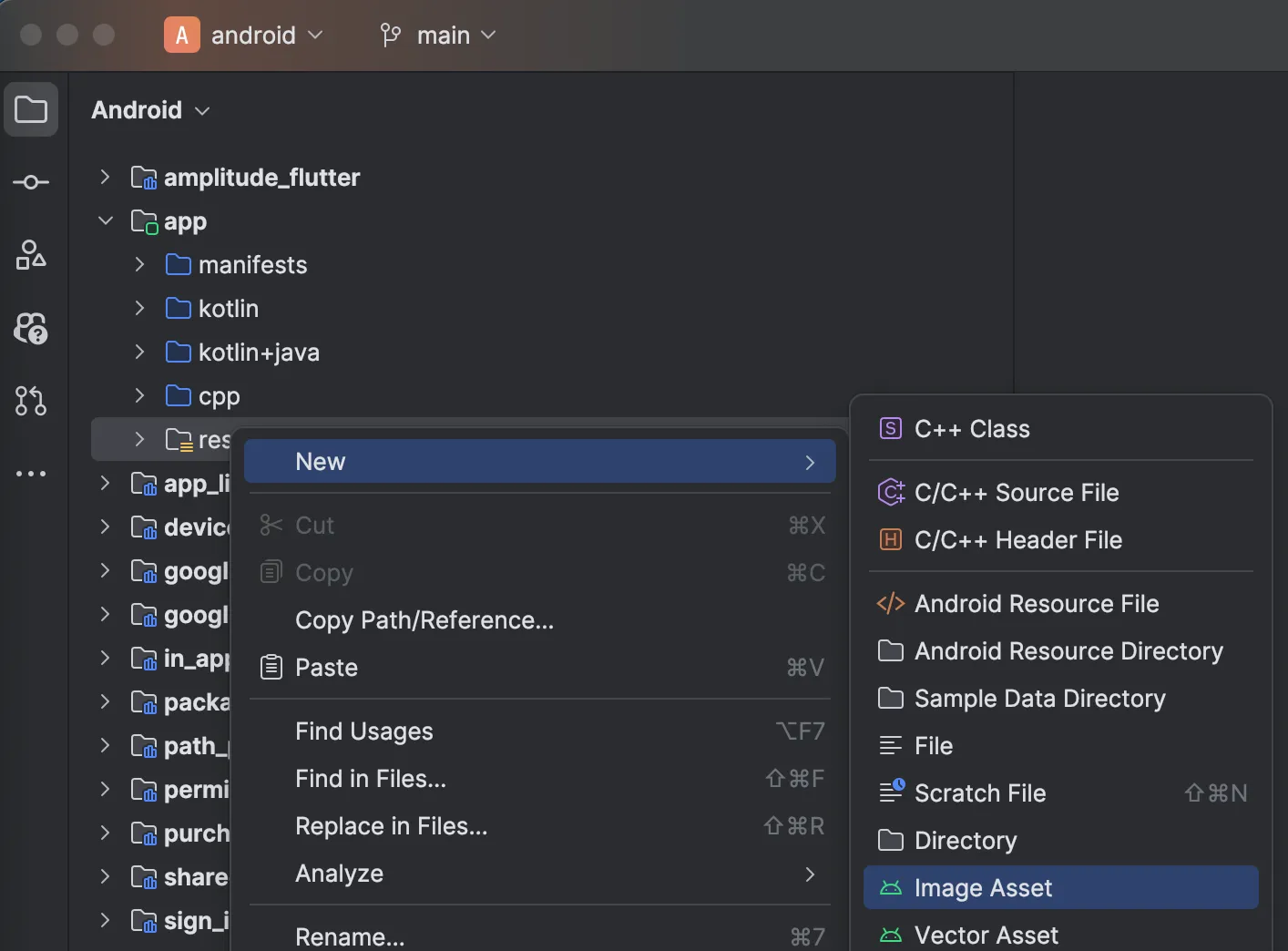
  1. Open the android folder of your Flutter project in Android Studio.
  2. In the left sidebar, open the app folder.
  3. Right-click on the res folder and select New > Image Asset.

Android Studio Image Asset

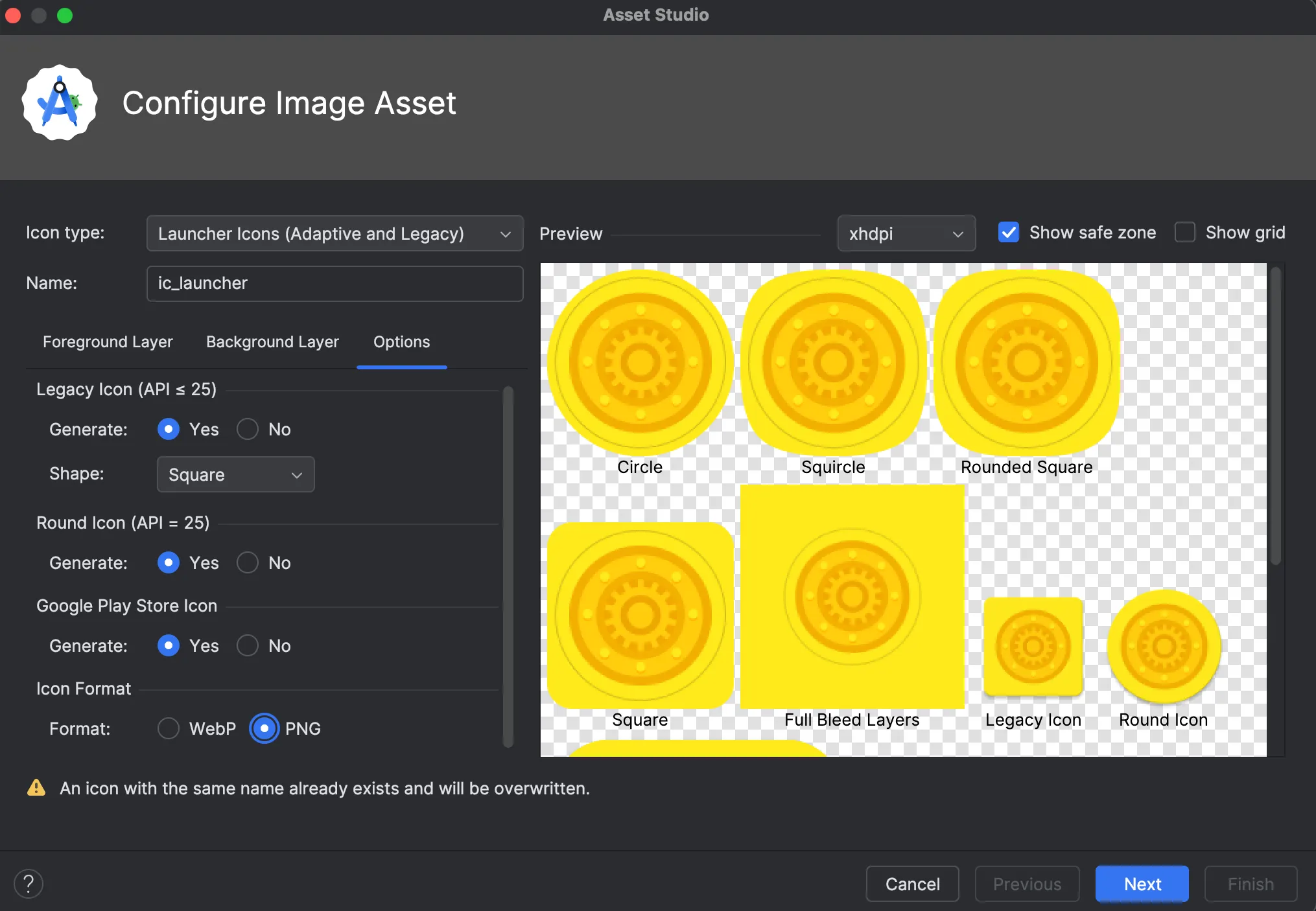
  1. On the “Configure Image Asset” dialog, select “Launcher Icons (Adaptive and Legacy)”.
  2. Choose your image file and adjust the settings as needed.
  3. On the “Options” tab, under the “Icon Format” section, choose the PNG option. This will ensure that the correct icon is used in Firebase App Distribution.

Use PNG format 7. Click “Next” and then “Finish” to generate the icons.
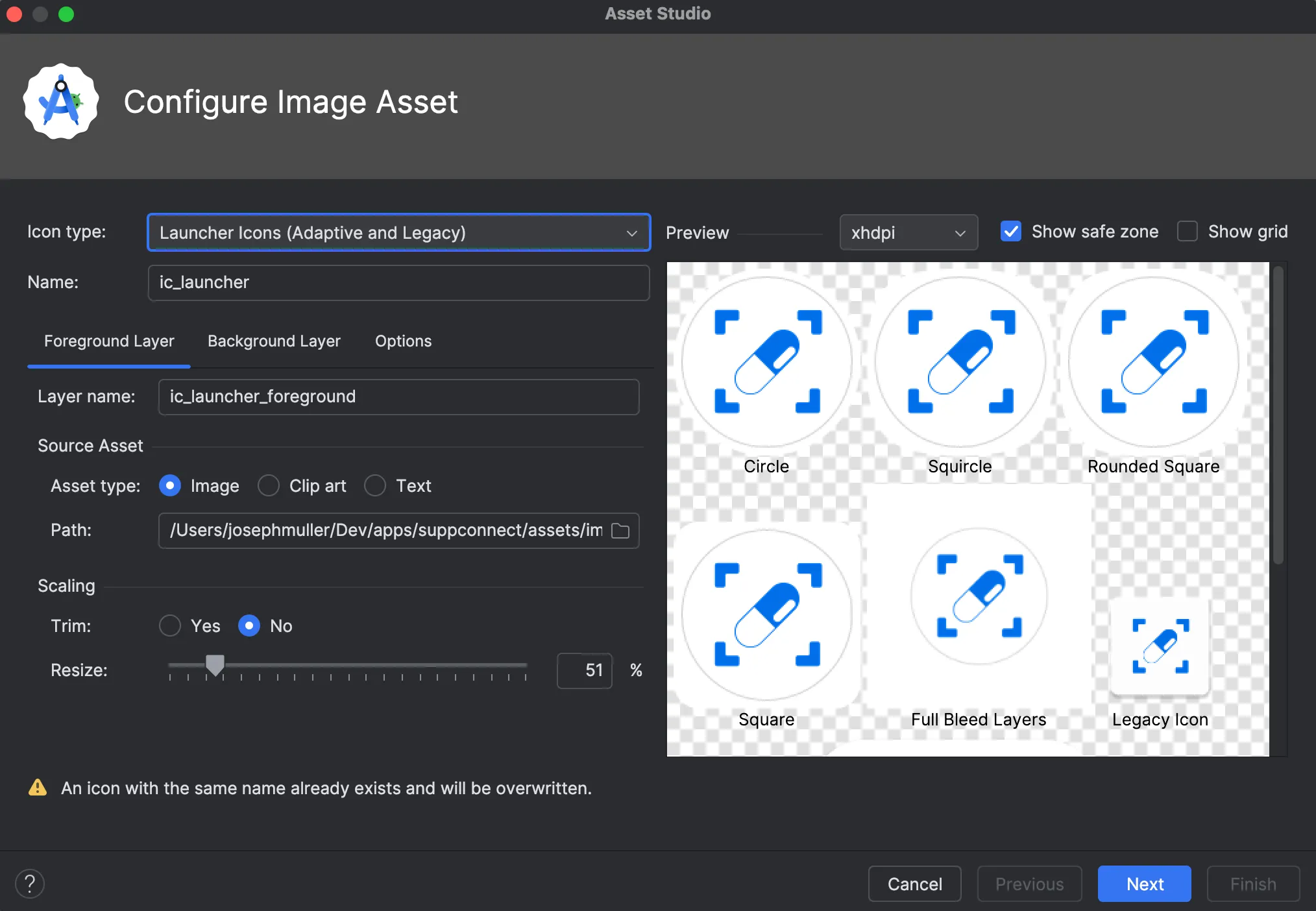
Configure Image Asset

See the official docs for a less useful walkthrough.

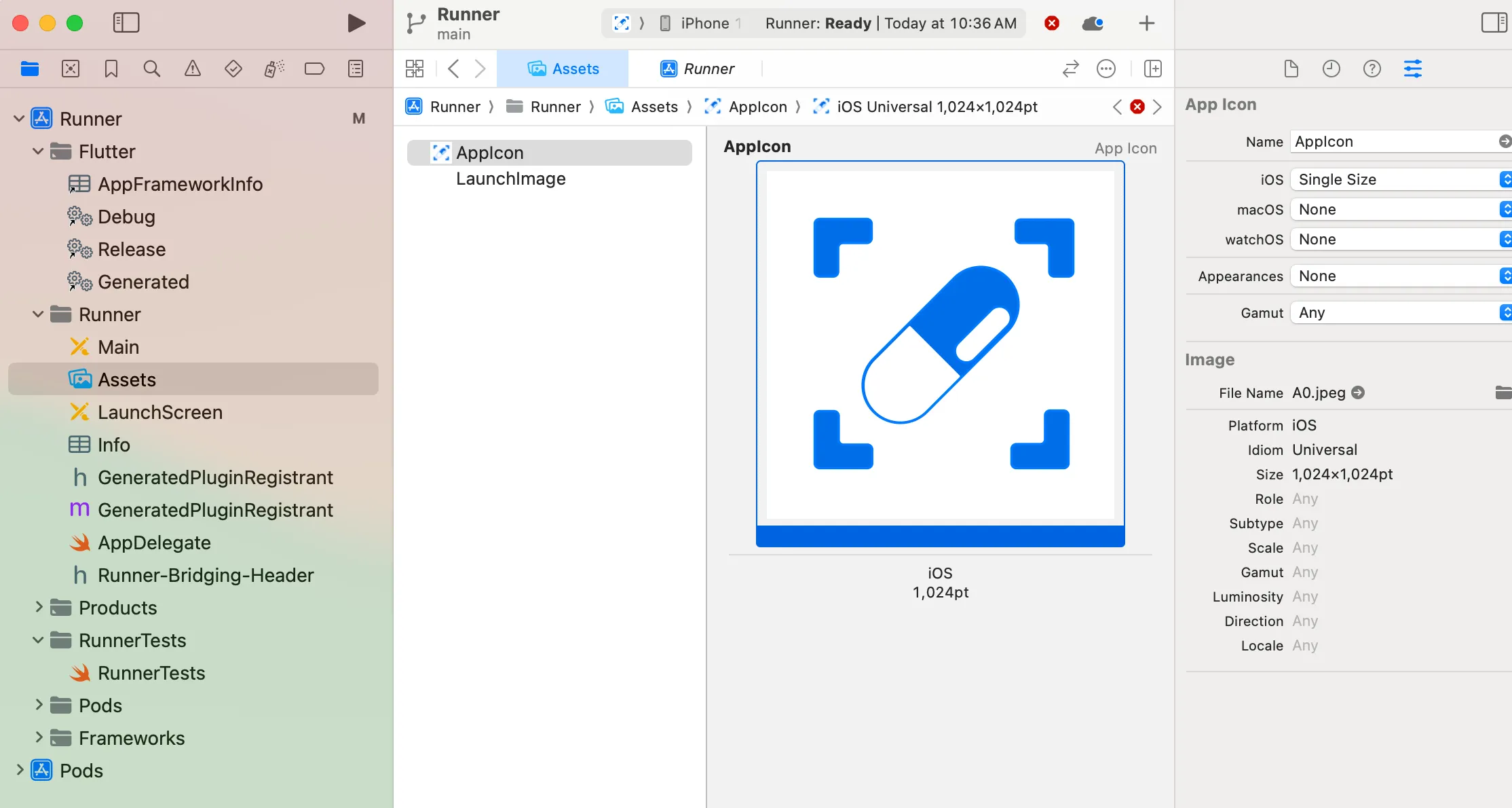
  1. Open the ios folder of your Flutter project in Xcode
  2. Under Runner -> Runner, open the “Assets” activity
  3. Select the “AppIcon” item from the list
  4. On the right panel, in the “Image” section, select your file where it says “File Name”
  5. For best results, choose an image with a background (ex. .jpg)

Xcode AppIcon

Xcode will generate all of your app icons from a single asset.

Do NOT change the name of the asset from “AppIcon”. Do NOT try to delete the AppIcon asset and add a new one. Just change the file.